 ChatGPT,
  Claude,
  Gemini,
  Grok — all four for
 How to Set Up Cron Jobs in cPanel
Cron Jobs is a cPanel automation tool. It allows you to automate specific commands or scripts on your site. You could set a command or script to run at a particular time every day, week, etc. (for example, set a cron job to delete temporary files weekly to free up disk space).
This guide will provide instructions on how to create, edit, or delete a Cron Job in cPanel.
How to Create a Cron Job in cPanel
- Log in to your Bluehost Portal.
- In the left-hand menu, click Hosting, then select My Plans.
- On the hosting details page, click the cPanel button.

- Your cPanel will open in a new tab.

- Scroll down to the Advanced section, then select Cron Jobs.
- Enter a valid email address in the current email address field and click the Update Email button.
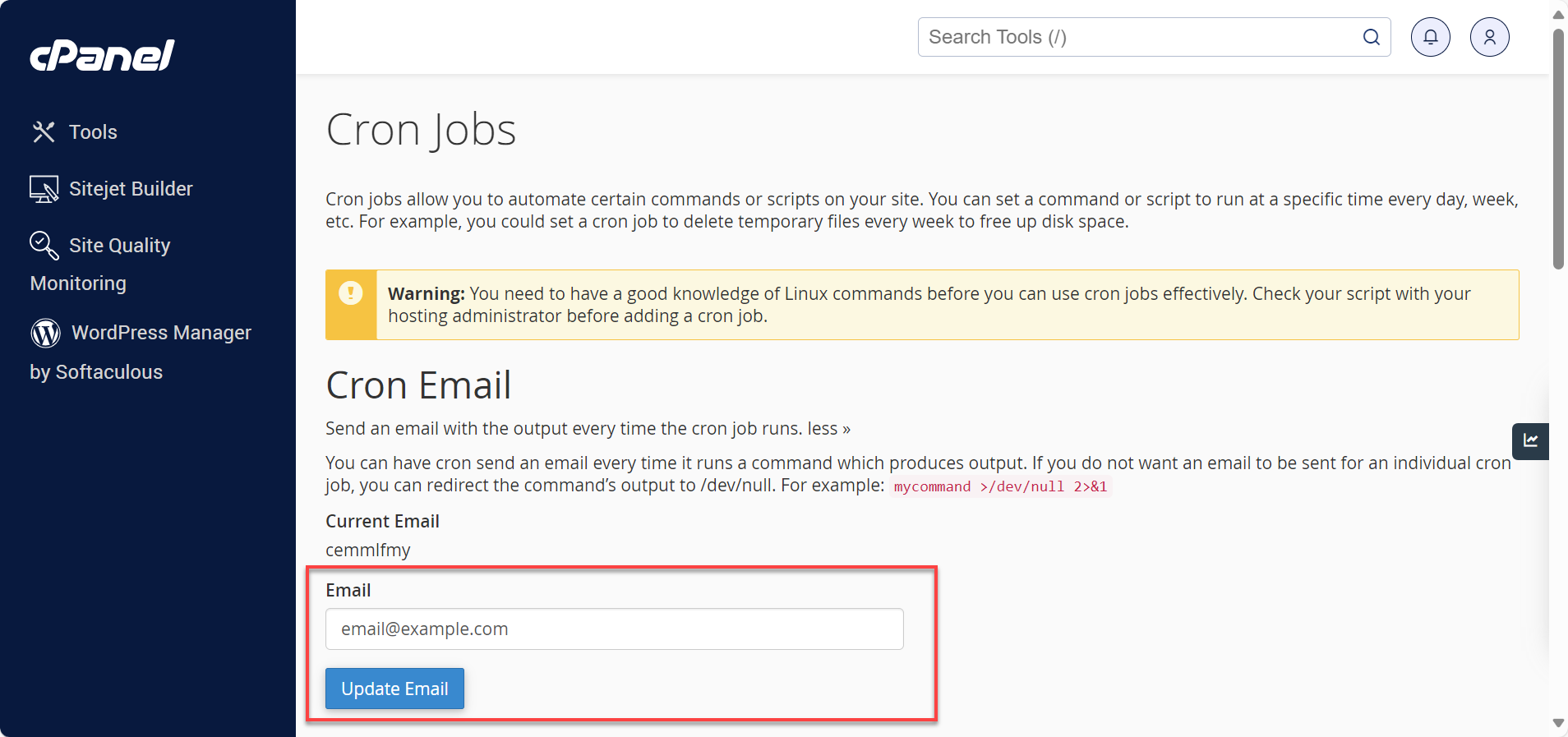
- You will then see your cron job scheduling options:
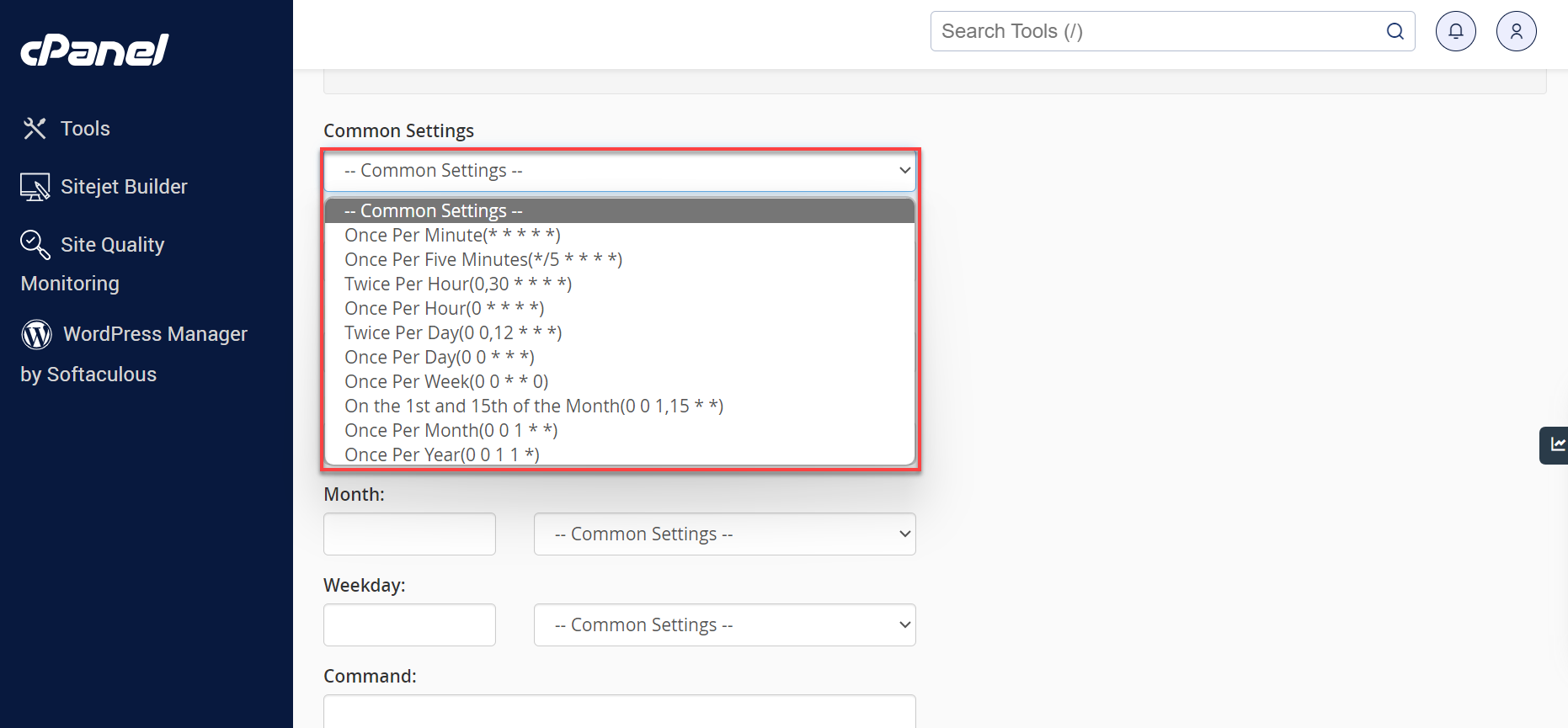
- Common Settings– Quickly apply standard timing options.
- Minute – Minute setting for the cron job.
- Hour – Hour setting for the cron job.
- Day – Day setting for the cron job.
- Month – Month setting for the cron job.
- Weekday – Weekday setting for the cron job.
- Command – Cron job command to execute. If you want to execute a script, it would look similar to the command below.
/usr/local/bin/php -c /home/username/public_html/myscript.php - Set the frequency of your Cron Job using the drop-down box for each setting, or use the Common Settings to choose from a list of regularly used intervals. Common Settings include every 15 minutes to once a year.
- Enter the desired command and click the Add New Cron Job button.
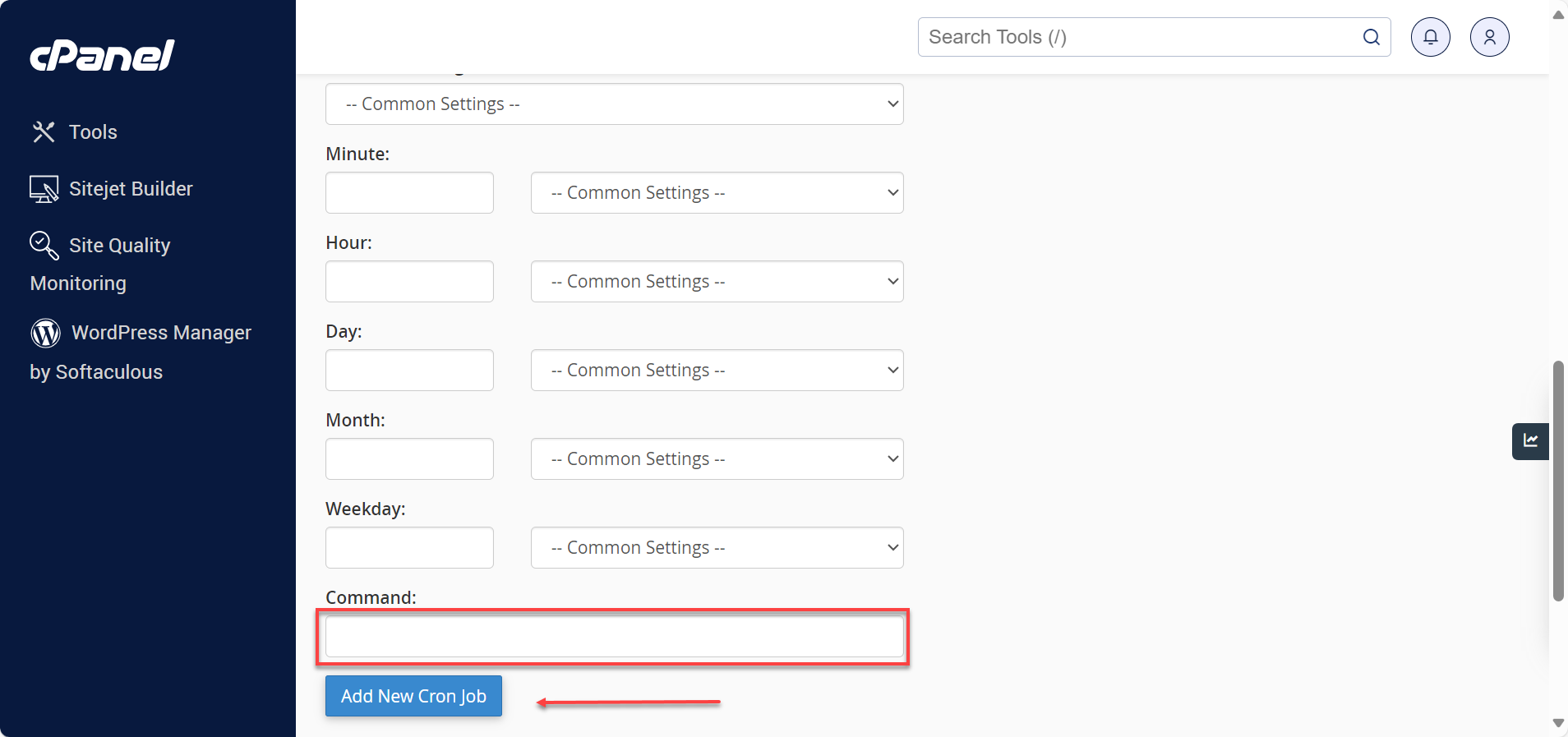
You have successfully created a Cron Job to execute a file at a specific time and date with the desired repetition.
How to View Existing Cron Jobs in cPanel
The Current Cron Jobs table displays your existing cron jobs.

How to Edit a Cron Job in cPanel
To edit a cron job, perform the following steps:
- Locate the cron job you wish to edit and click the Edit icon.
- Edit the settings you want to change and click Edit Line.
How to Delete a Cron Job in cPanel
To delete a cron job, perform the following steps:
- Select the Delete button next to the cron job that you wish to delete.
- Select the Delete button again to delete it successfully.
The edit panel has fewer common settings, so if you are having trouble getting the correct interval, copy the command, delete the Cron Job, and recreate it using the Add New Cron Job section.
Summary
Learn how to use Cron Jobs in cPanel to automate specific scripts or commands on your website. With Cron Jobs, you can easily schedule a command or script to run at a particular time, day, or week, saving you time and effort. Our guide has step-by-step instructions on how to create, edit, or delete a Cron Job. Also, know the steps to view existing Cron Jobs and edit them if needed. However, it's crucial to learn Linux commands well before using Cron Jobs effectively, and it's always a good idea to check the script with your hosting administrator before using Cron Jobs.
If you need further assistance, Bluehost Chat Support is available 24 hours a day, 7days a week while Bluehost Phone Support is available 7 days a week from 7 am-12 midnight EST.
- Chat Support - While on our website, you should see a CHAT bubble in the bottom right-hand corner of the page. Click anywhere on the bubble to begin a chat session.
- Phone Support -
- US: 888-401-4678
- International: +1 801-765-9400
You may also refer to our Knowledge Base articles to help answer common questions and guide you through various setup, configuration, and troubleshooting steps.