How to Reset Your Bluehost Portal Password
Learn how to reset or change your Bluehost Portal password or User ID with this step-by-step guide. Your login password allows you to access your Bluehost Portal and also serves as your cPanel password.
This article discusses the following topics:
We created a video to help you reset your Bluehost Portal password.
Forgot Your User ID? How to Change It
If you have forgotten your Bluehost User ID, you can change it on the Bluehost Portal login page.
- Go to the Bluehost Portal login page.
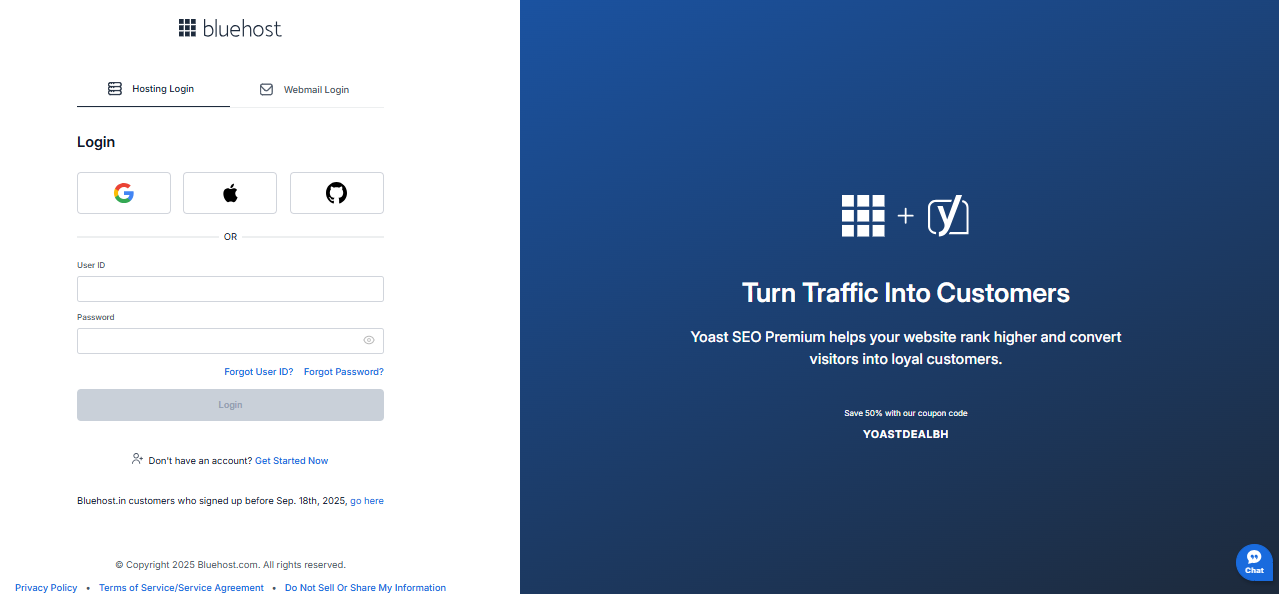
- Click the Forgot User ID? link.
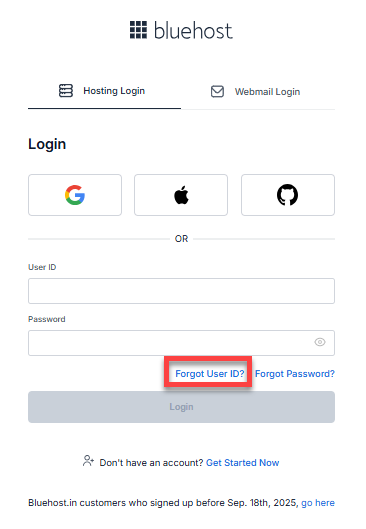
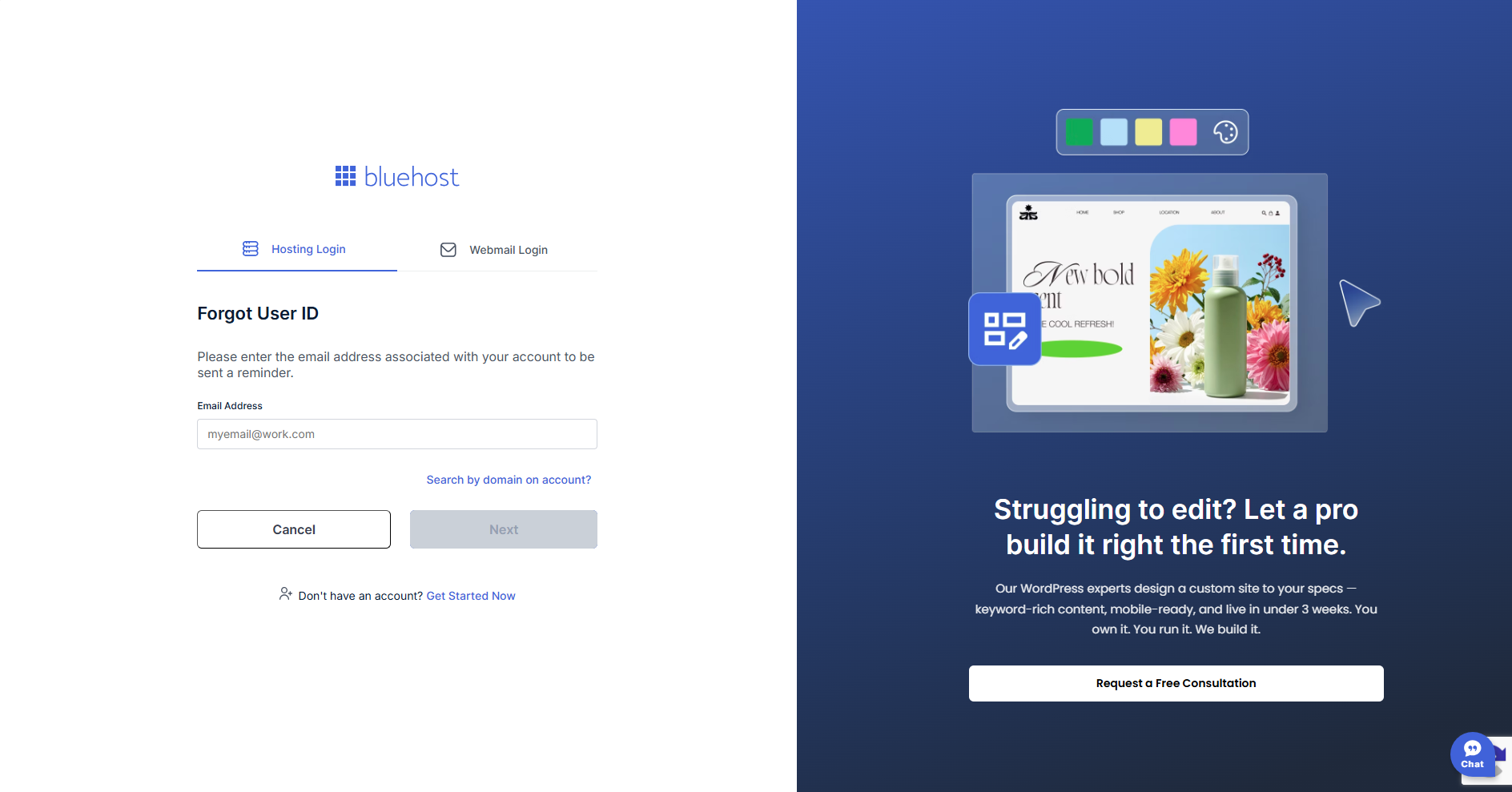
- Enter the email address associated with your Bluehost account, then click Next.
- Check your email. You should receive an email similar to this:
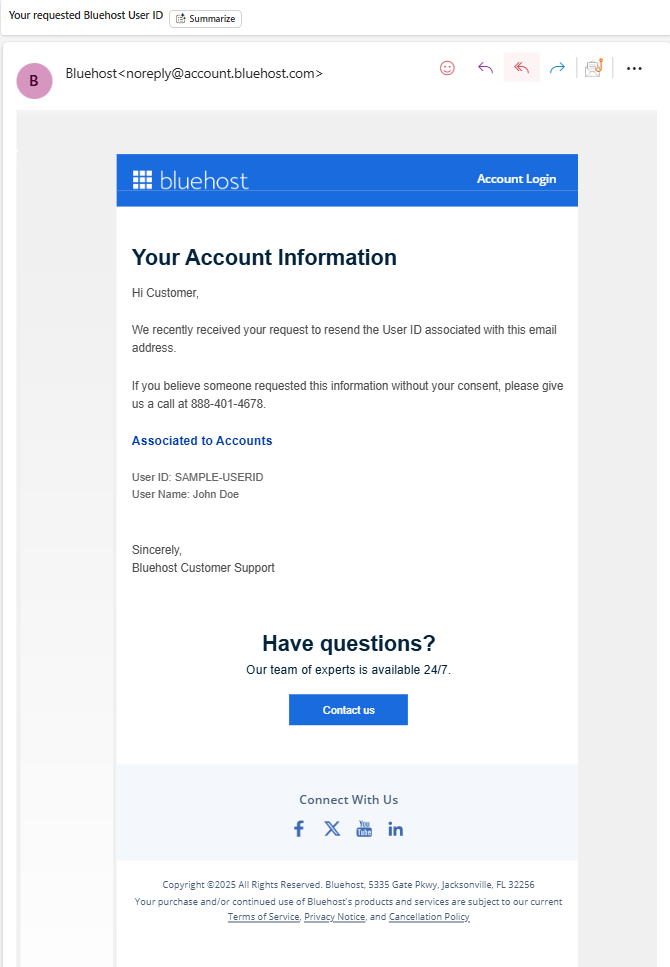
*The image above displays a sample User ID and User Name.- If the email is not in your Inbox, wait a few minutes, check again, or look in your Junk mail or Spam folder.
- If you have not received the email yet, confirm that you're checking the correct email address. You can also click Resend Email to have it sent again.
- Once you have your User ID, return to the login page and try logging in again.
Forgot Your Password? How to Reset It
If you don't remember your password, you can reset it on the Bluehost Portal login page.
- Go to the Bluehost Portal login page.
- Click the Forgot Password? link.
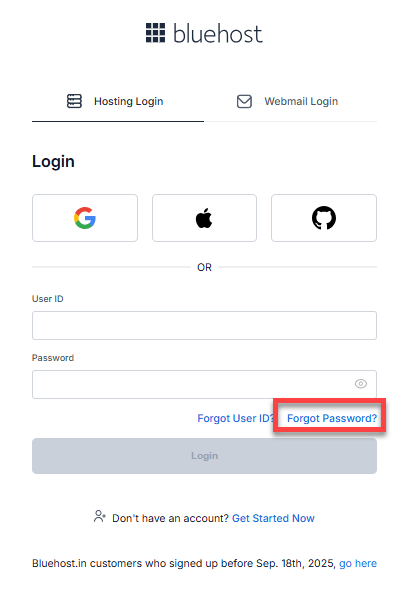
- Enter your User ID and click Next.
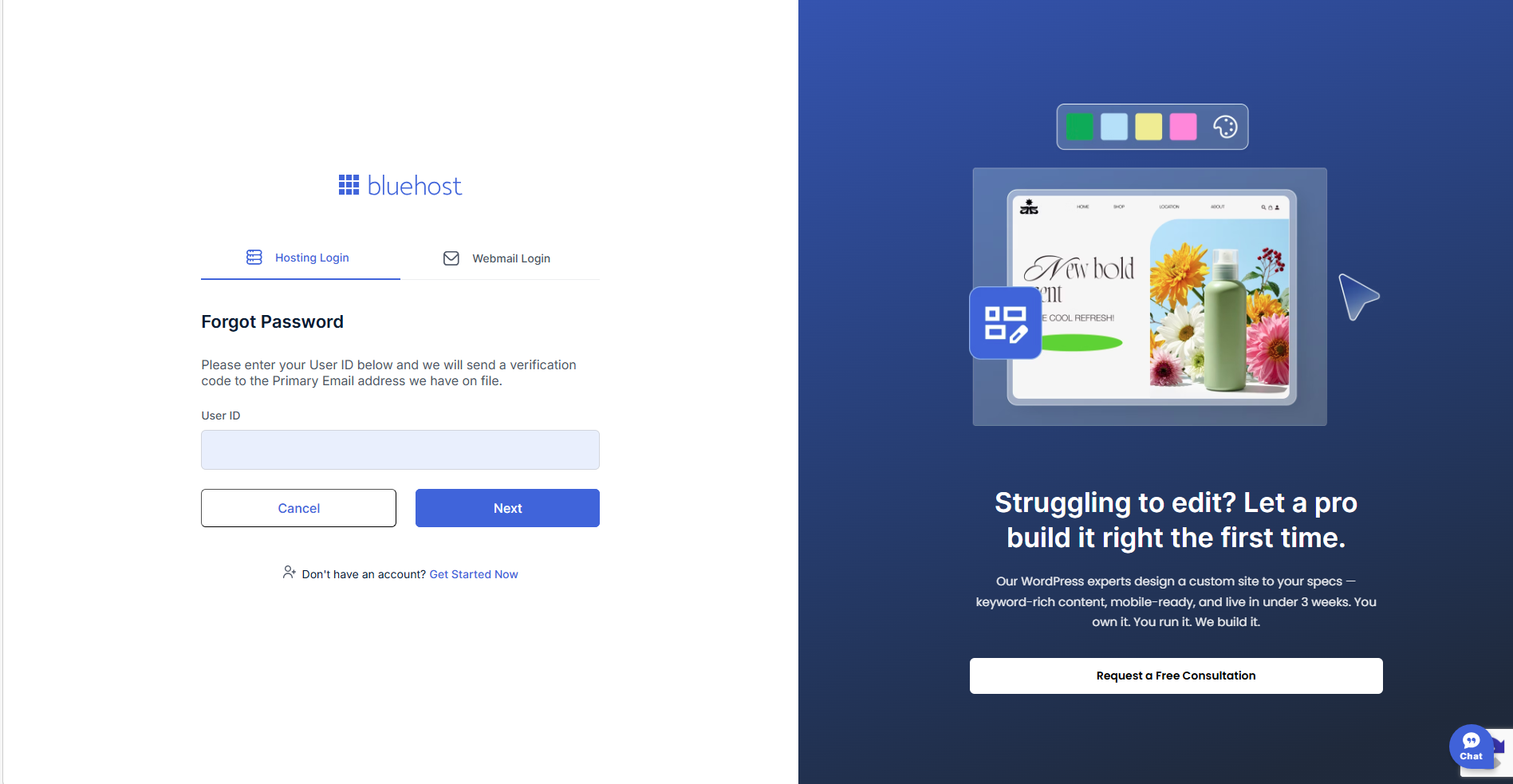
- A verification code will be sent to the email address associated with your Bluehost account. If you have set up your recovery email and trusted phone number, you can send it to either.
Your verification code will look similar to this:
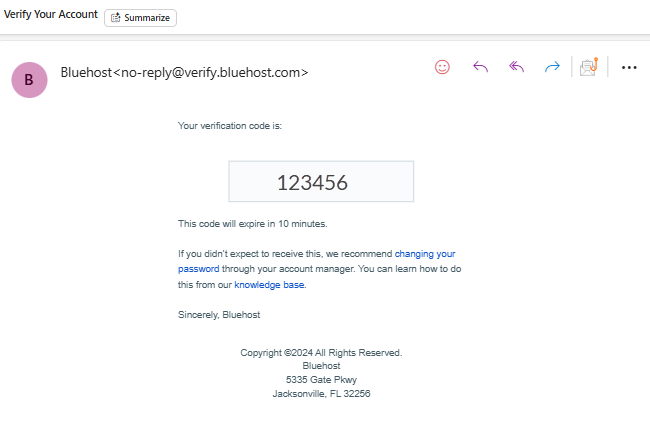
*The image above displays a sample verification code.- If the email is not in your Inbox, wait a few minutes, check again, or look in your Junk mail or Spam folder.
- If you have not received the email yet, please ensure you're checking the correct email address.
- If you need to change your email address, refer to the Bluehost Account Recovery Overview article for guidance.
- Enter the verification code and click Verify Code.
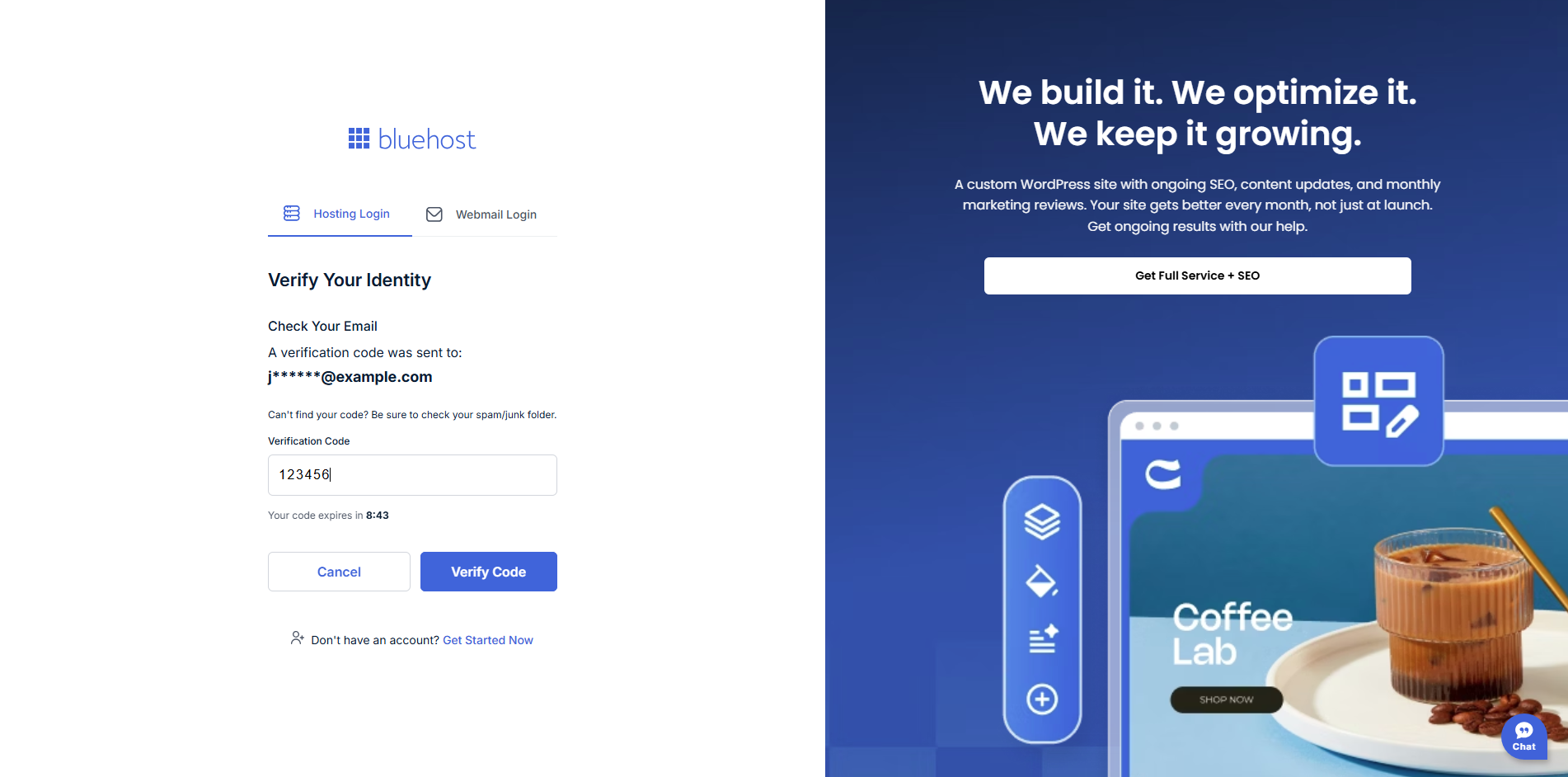
*The image above displays a sample verification code.
- Enter a new password, then click Change Password.

You have successfully reset your password! You can now log in using your new password.
Know Your Password? How to Change It
If you know your current password, you can change it within your Bluehost Portal.
- Log in to your Bluehost Portal.
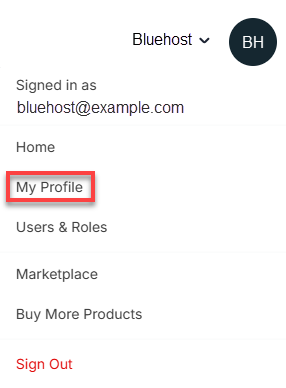
- Click your Profile name or icon in the top-right corner, then select My Profile.
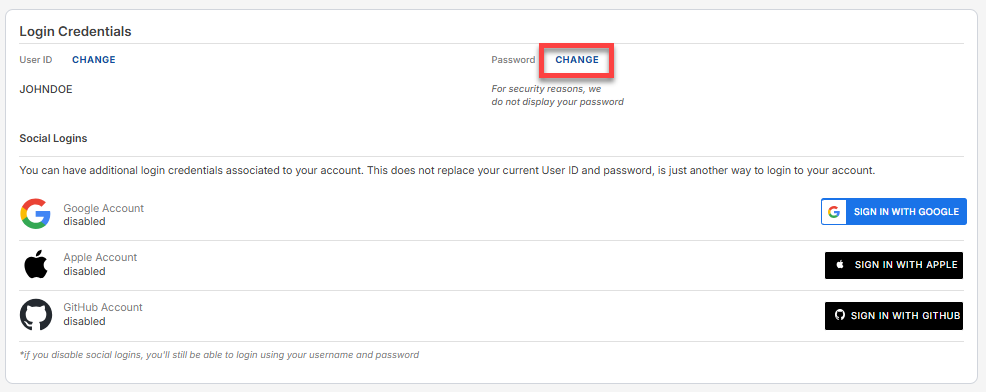
- Under Login Credentials, click Change next to Password.
-
Enter your current password, choose a new password, and confirm it before saving.
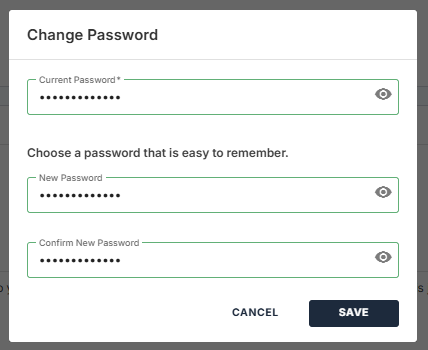
You have successfully changed your password!
Password Requirements
Your Bluehost hosting account password must meet these security standards:
- At least eight characters
- At least one capital letter
- At least one lowercase letter
- At least one number
- At least one special character
- A minimum strength rating of "Meh" or higher
- Should not be a previously-used password
- Should not contain the account username
What is a Special Character?
Special characters are symbols that are not letters or numbers. Examples include:
| ~ | ` | ! | @ | # | $ | % | ^ |
| & | * | ( | ) | _ | - | + | = |
| [ | ] | { | } | | | \ | : | ; |
| " | ' | < | > | , | . | ? | / |
Troubleshooting Password Issues
- If your password meets all requirements but is still weak, add a special character.
- Use only the special characters listed above (avoid international characters).
- If you can’t log in, confirm you’re using a valid User ID (domain name or original User ID, NOT an email address).
- Clear your browser’s cache, cookies, and history if login issues persist.
Summary
Keep your Bluehost account secure by ensuring you can access your Bluehost Portal. This article provides clear steps to reset or change your password, as well as change your User ID whenever necessary. Protecting your Bluehost account has never been easier!
If you need further assistance, Bluehost Chat Support is available 24 hours a day, 7days a week while Bluehost Phone Support is available 7 days a week from 7 am-12 midnight EST.
- Chat Support - While on our website, you should see a CHAT bubble in the bottom right-hand corner of the page. Click anywhere on the bubble to begin a chat session.
- Phone Support -
- US: 888-401-4678
- International: +1 801-765-9400
You may also refer to our Knowledge Base articles to help answer common questions and guide you through various setup, configuration, and troubleshooting steps.