Bluehost Portal Websites Performance Tab
The Bluehost Portal Websites Performance Tab gives you full control over your website’s speed, caching, and performance optimization tools. Keeping your website fast and reliable improves user experience, SEO rankings, and overall stability.
From page caching controls to object caching with Redis, Cloudflare CDN integration, and Google PageSpeed Insights, everything you need to improve WordPress performance is available in one place.
How to Access the Performance Tab
- Log in to your Bluehost Portal.
- In the left-hand menu, click Websites.
- Click the Manage button located next to the website you want to manage.

- Click the Performance tab.
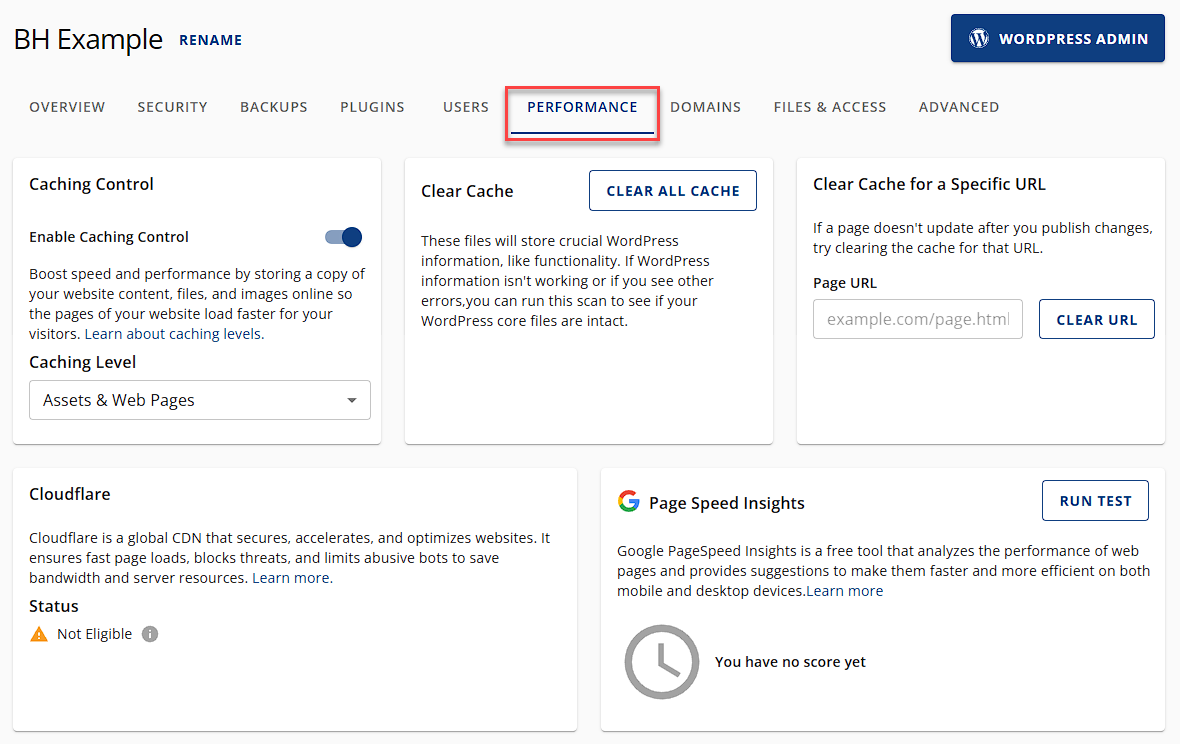
Under the Websites' Performance tab, you will find the following sections:
- Caching Control - Caching saves copies of your website’s content (like images and files) so the pages load faster for your visitors.
Turn the switch ON to activate the Page caching and select which Page caching level option you prefer using. You can also enable or disable the Object Caching feature.
You can choose how much of your site gets cached. You can click the Learn about caching levels button to understand more about each level: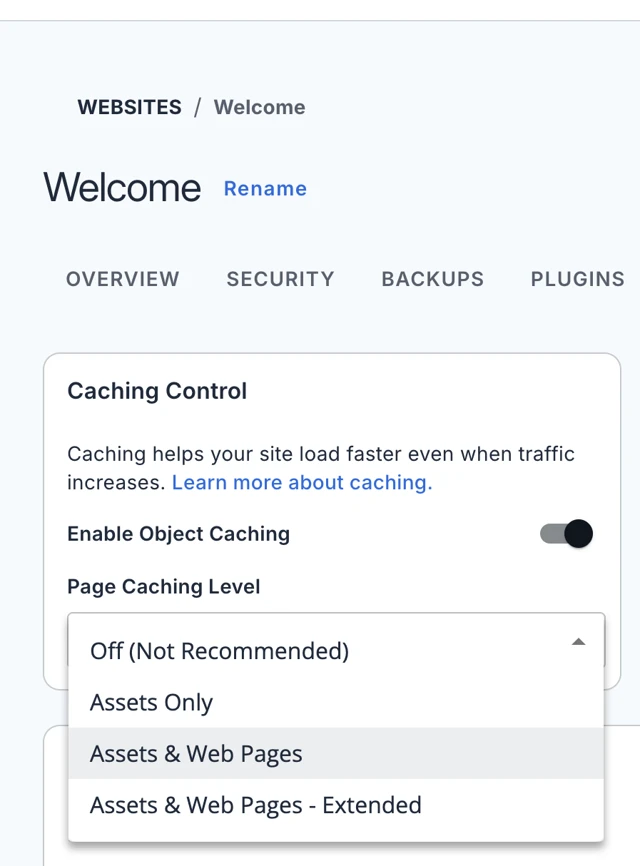
- Assets Only
Best for:
E-commerce platforms and websites that update frequently or display real-time information.Caching Strategy:
- Cache static assets (e.g., images, CSS, JS) for 5 minutes.
- Do not cache dynamic content to ensure real-time updates.
- Assets & Web Pages
Best for:
Blogs, educational sites, and websites that update at least weekly.Caching Strategy:
- Cache static assets for 6 hours.
- Cache web pages for 5 minutes to allow timely updates.
- Assets & Web Pages – Extended
Best for:
Portfolios, brochure sites, and websites that update monthly or less.Caching Strategy:
- Cache static assets for 1 week.
- Cache web pages for 5 minutes to maintain freshness for occasional updates.
- Object Cache
In addition to page caching, Bluehost also uses object caching with Redis.
Object caching stores frequently requested database data in memory rather than repeatedly querying the database.
This improves:
- WordPress admin speed
- Dynamic page generation
- WooCommerce and membership plugins
- High-traffic stability
Object caching runs automatically and requires no setup. Please check out the What is Object Caching at Bluehost article to learn more.
- Assets Only
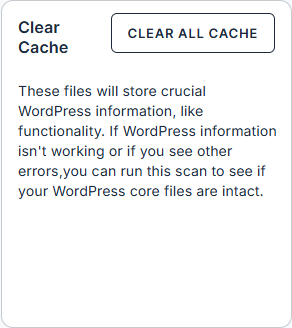
- Clear Cache - These files contain essential WordPress core components that ensure your site’s functionality. If your WordPress features aren’t working properly or you encounter errors, run this scan to verify the integrity of your WordPress core files.
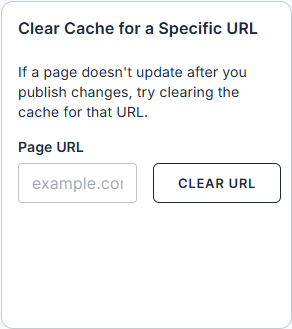
- Clear Cache for a Specific URL - When a page doesn’t reflect your published changes, clear the cache for that specific URL to ensure the update appears.
- Cloudflare Integration - Cloudflare is a global Content Delivery Network (CDN) that enhances website security, speed, and performance. It delivers fast page loads, mitigates threats, and reduces bandwidth consumption by blocking abusive bots and optimizing server resources.

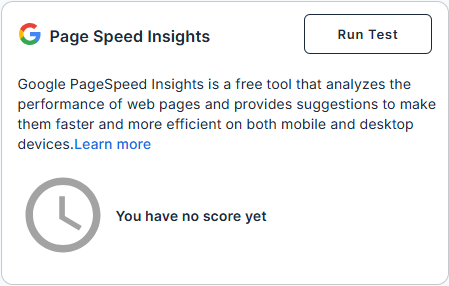
- Page Speed Insights - Google PageSpeed Insights is a free tool that evaluates the performance of web pages and offers actionable recommendations to improve speed and efficiency across both mobile and desktop devices.
Summary
Bluehost gives you the tools to keep your website running at its best. Whether you need faster load times, improved security, or performance insights, the Performance tab makes optimization easy.
If you need further assistance, feel free to contact us via Chat or Phone:
- Chat Support - While on our website, you should see a CHAT bubble in the bottom right-hand corner of the page. Click anywhere on the bubble to begin a chat session.
- Phone Support -
- US: 888-401-4678
- International: +1 801-765-9400
You may also refer to our Knowledge Base articles to help answer common questions and guide you through various setup, configuration, and troubleshooting steps.