 ChatGPT,
  Claude,
  Gemini,
  Grok — all four for
 After DNS records are added or updated, the change can take some time to update across the Internet. This period is called propagation. When a domain is opened in a web browser, the request doesn't go directly to the hosting server. It has to pass through several Internet Service Provider nodes first; your computer starts by checking the local DNS cache, where previously viewed information is stored. Afterward, the request is sent to your ISP and, from there, to the hosting server. Each node will check its cache first, and because ISPs refresh their caching at different intervals, it can take some time for the changes you've made to reflect globally.
What Is DNS Propagation
DNS propagation is the process through which updated DNS records—such as name server changes or new A records—spread across the global network of DNS servers. When a DNS change is made, it doesn't reflect instantly everywhere. Instead, Internet Service Providers (ISPs) and other DNS resolvers cache old records, which takes time for those caches to update. This delay is known as propagation and can cause your website changes to appear inconsistently across different regions.
How Long Does DNS Propagation Take?
Nameserver (NS) changes can take up to 24-48 hours to propagate globally. Individual DNS record updates may take a few minutes to process but can take up to 8 hours to complete. The exact duration depends on several factors:
- TTL (Time to Live) values set on your DNS records
- ISP caching policies
- Geographic location of users
- Type of DNS record updated
Some users may see the old website or receive DNS errors during this time, while others may already see the updated site.
DNS Propagation Timeline (Example)
| Time Since Update | U.S. Servers | EU Servers | Asia Servers | Australia Servers |
|---|---|---|---|---|
| 0 Hours | Not updated | Not updated | Not updated | Not updated |
| 6 Hours | Some updated | Not updated | Not updated | Not updated |
| 12 Hours | Majority updated | Some updated | Not updated | Not updated |
| 24 Hours | Updated | Updated | Some updated | Some updated |
| 48 Hours | Updated | Updated | Updated | Updated |
Note: Actual times may vary based on TTL and ISP refresh schedules.
How Can I Check DNS Propagation?
You can monitor your domain's DNS status globally using these free tools:
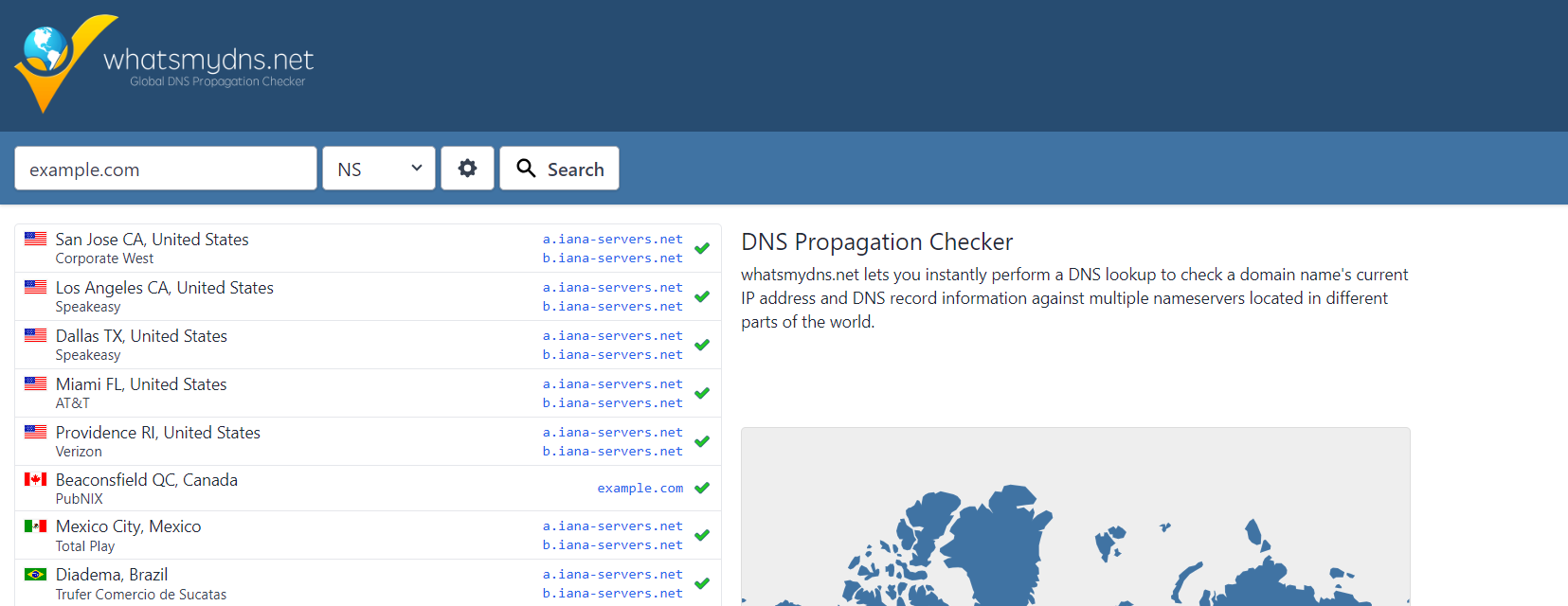
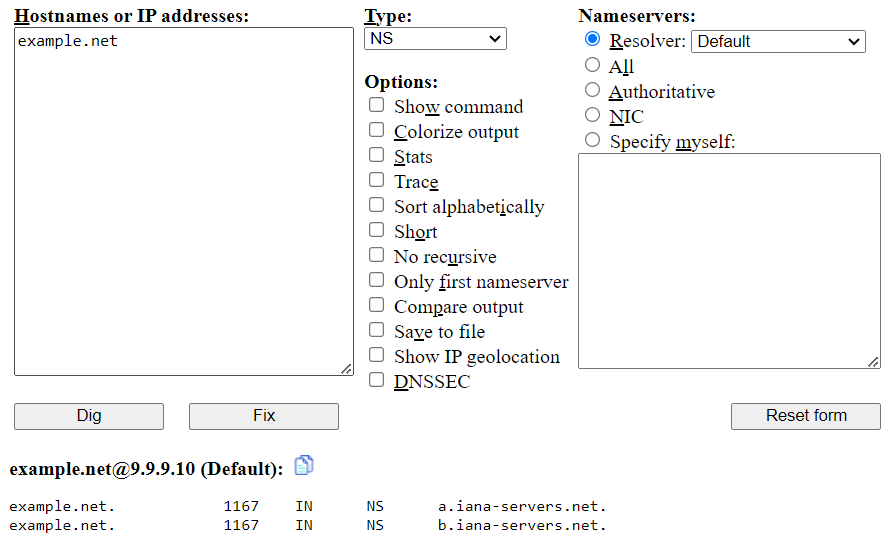
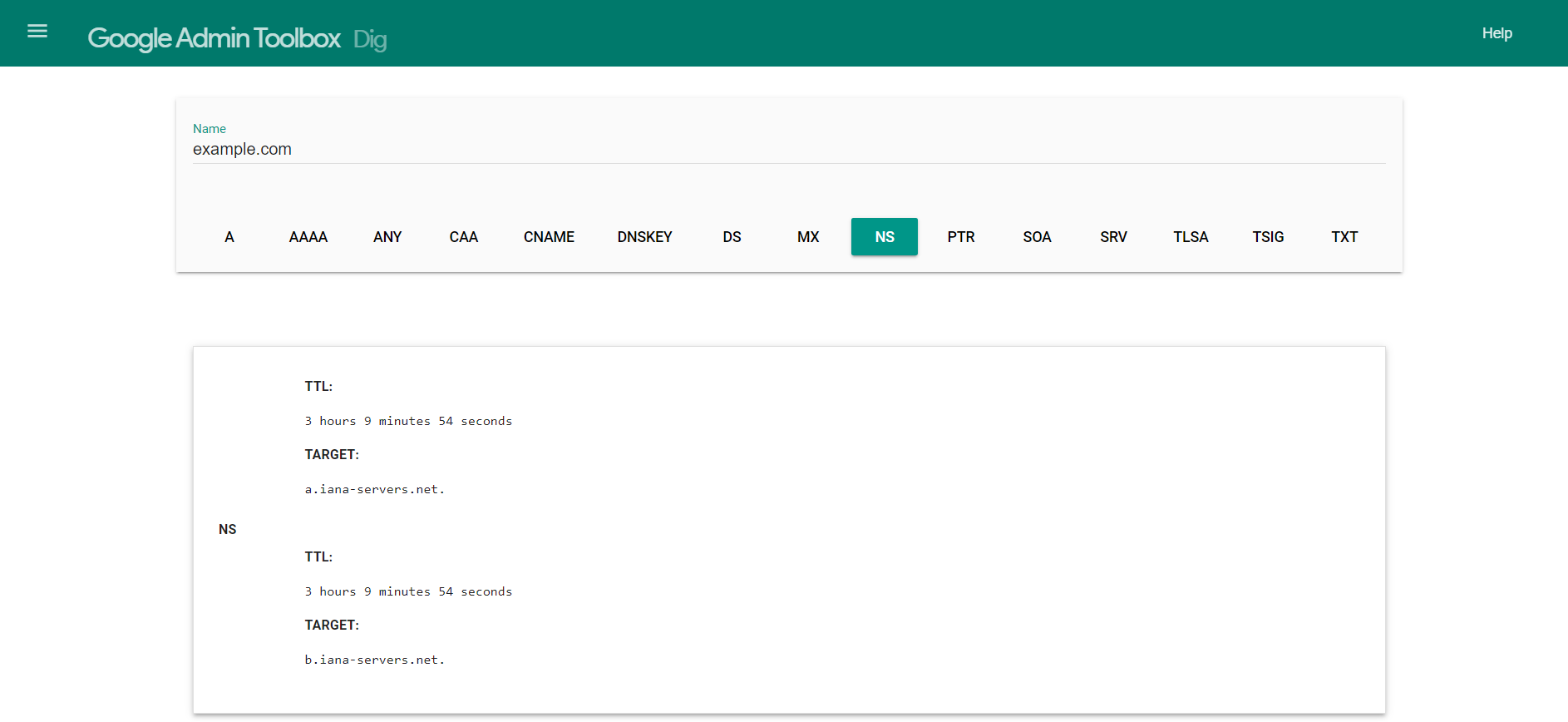
These tools allow you to:
- Enter your domain
- Choose the record type (A, CNAME, MX, etc.)
- View results from DNS servers in multiple countries
Advanced (Command Line Tools)
nslookup– Runnslookup yourdomain.comin the Command Prompt or Terminal to query DNS records.dig– Rundig yourdomain.comordig @8.8.8.8 yourdomain.comfor more detailed DNS info.Note
Replace
yourdomain.comin the commands above with your actual domain name (for example,nslookup example.com).
Can Propagation Be Expedited?
Although you can't eliminate the delay, you can minimize the impact of propagation with these techniques:
- Lower TTL in Advance — Set TTL values to 300 seconds (5 minutes), 24–48 hours before changes. This allows faster cache refresh.
- Use Global Traffic Managers — Cloudflare or AWS Route 53 can direct users to the nearest server, improving response during propagation.
- Parallel Hosting — Host your site temporarily on old and new servers, ensuring availability regardless of DNS status.
- Inform Users — Let your customers or users know about planned DNS changes to set expectations for potential downtime.
- Monitor Progress — Use tools like DNS Checker to watch DNS record updates globally.
- Contact ISPs (Advanced) — Large ISPs may manually clear their DNS cache for critical use cases, but this is rare and not guaranteed.
How Will I Know When DNS Propagation Is Complete?
You'll know propagation is complete when:
- Your new DNS records show up consistently in DNS tools like DNSChecker.org
- You can access the site from different devices, ISPs, or regions
- There are no inconsistencies or DNS errors across browsers and devices
Additional Methods
- Use a VPN to simulate requests from other regions
- Run
digornslookupon different networks (e.g., mobile vs Wi-Fi) - Contact your hosting provider to confirm record updates
What Happens to DNS Records When Hosting Expires?
If your hosting plan is canceled or expires, DNS records hosted with the associated service may eventually be removed and may not be recoverable through Bluehost. Retention periods and deletion timelines can vary depending on where the DNS zone is hosted and the applicable service policies. Historical DNS information may sometimes be available through third-party tools such as DNS Trails, but availability is not guaranteed.
To avoid potential data loss, we strongly recommend backing up your DNS zone records before switching providers, making significant DNS changes, or canceling services.
Summary
DNS propagation is the process of distributing updated DNS records across DNS servers worldwide. The time required for propagation varies depending on the type of DNS change, TTL settings, ISP caching behavior, and server location. You can monitor propagation progress using tools such as Dig Web Interface, WhatsMyDNS, or command-line utilities like dig and nslookup. While propagation cannot be forced to complete faster, planning DNS changes in advance, lowering TTL values beforehand when appropriate, and coordinating migrations can help minimize potential service disruptions. Understanding DNS propagation can help ensure a smoother transition when making DNS-related changes.
If you need further assistance, Bluehost Chat Support is available 24 hours a day, 7days a week while Bluehost Phone Support is available 7 days a week from 7 am-12 midnight EST.
- Chat Support - While on our website, you should see a CHAT bubble in the bottom right-hand corner of the page. Click anywhere on the bubble to begin a chat session.
- Phone Support -
- US: 888-401-4678
- International: +1 801-765-9400
You may also refer to our Knowledge Base articles to help answer common questions and guide you through various setup, configuration, and troubleshooting steps.